Designing Voice Input for AI Travel Agents
Voice is not an accessibility add-on — it is the optimal input for travel planning while walking through airports, sitting in cabs, or lying in bed researching a trip.
"Find me a flight to Tokyo." Six words. Typing them on a phone keyboard takes about eight seconds, including autocorrect battles. Speaking them takes two seconds. And you can do it while packing a suitcase, walking through a terminal, or lying in bed with the lights off.
Voice input for travel is not an accessibility feature bolted on for compliance. It is the optimal input mode for the majority of contexts where travel planning actually happens. Voice search for travel has grown 270 percent since 2021, and only 12 percent of travel apps support it as a primary input. That gap represents a massive design opportunity.
When voice wins
Travel planning happens in contexts where typing is inconvenient, slow, or impossible.
Walking through an airport with a roller bag. One hand holds the bag. The other holds the phone. Typing requires stopping, and stopping in an airport is fighting against a river of moving people.
Sitting in a cab on the way to the hotel. You want to ask about restaurants near the hotel. You could type, but speaking is faster and does not require looking at the screen.
Lying in bed at 11 PM researching a trip. The lights are off. Your partner is asleep. Typing means screen brightness and tapping sounds. A whispered voice query is quieter and requires less screen interaction.
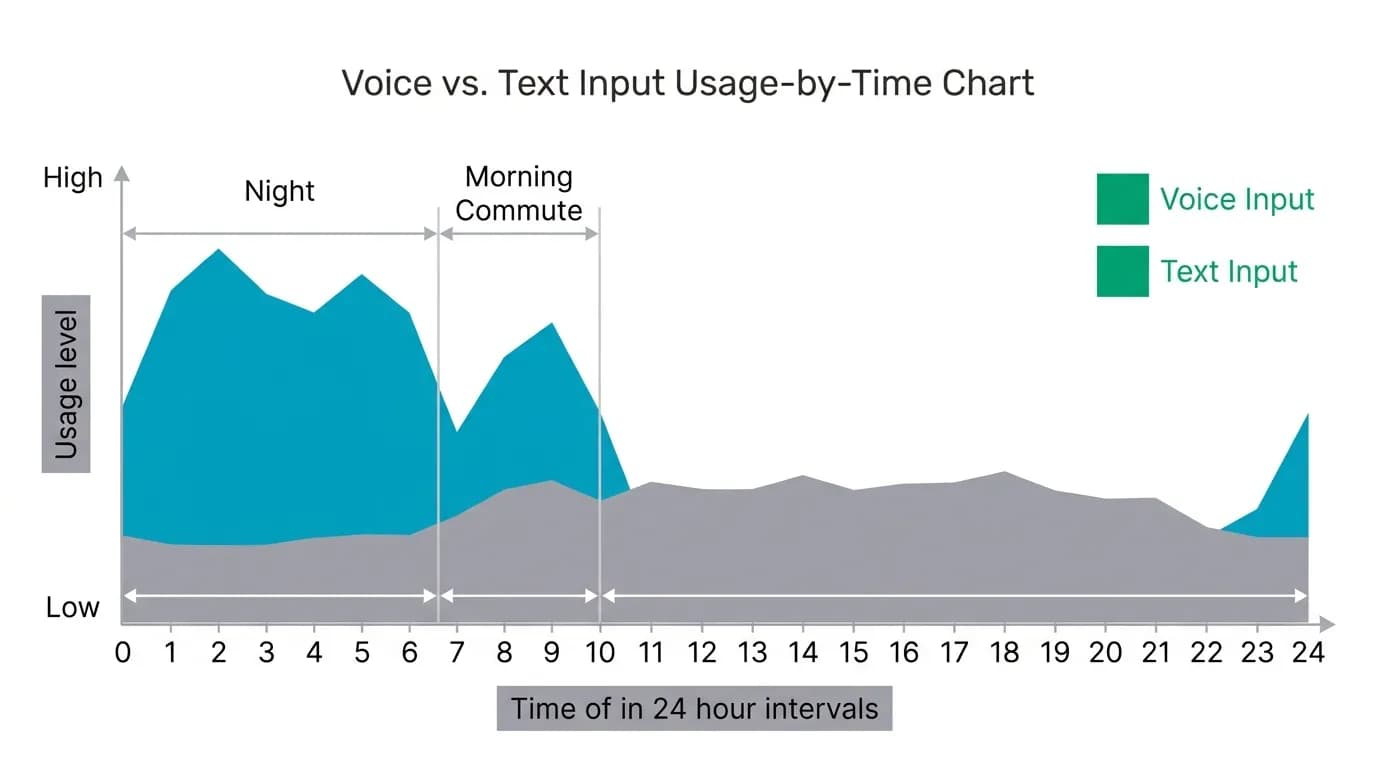
Voice usage data confirms these patterns. Usage peaks between 10 PM and 7 AM (the bed research window) and again between 7 AM and 9 AM (the commute window). These are precisely the times when hands-free input has the greatest advantage.
Our target is 30 percent or more of input sessions using voice. This is not about replacing text input — it is about making voice a genuine first-class option that users naturally reach for when the context favors it.
Microphone placement
The microphone button must be always visible and always accessible. In our input bar, it sits to the right of the text field, in the same visual zone as the send button. The user does not need to navigate to a different screen or open a menu to access voice input. It is right there, on every screen that accepts input, all the time.
The button uses a microphone icon at 44 by 44 points — the minimum touch target for comfortable one-handed tapping. When the input bar is empty (no text typed), the microphone button is the most prominent interactive element, signaling that voice is a valid starting point, not just an alternative.
Placement matters more than most teams realize. A voice input option buried in a menu or behind a long-press gesture will get negligible adoption. Voice input that is visually equal to text input gets meaningful adoption. We give both options identical visual weight and identical spatial prominence.
The recording UI
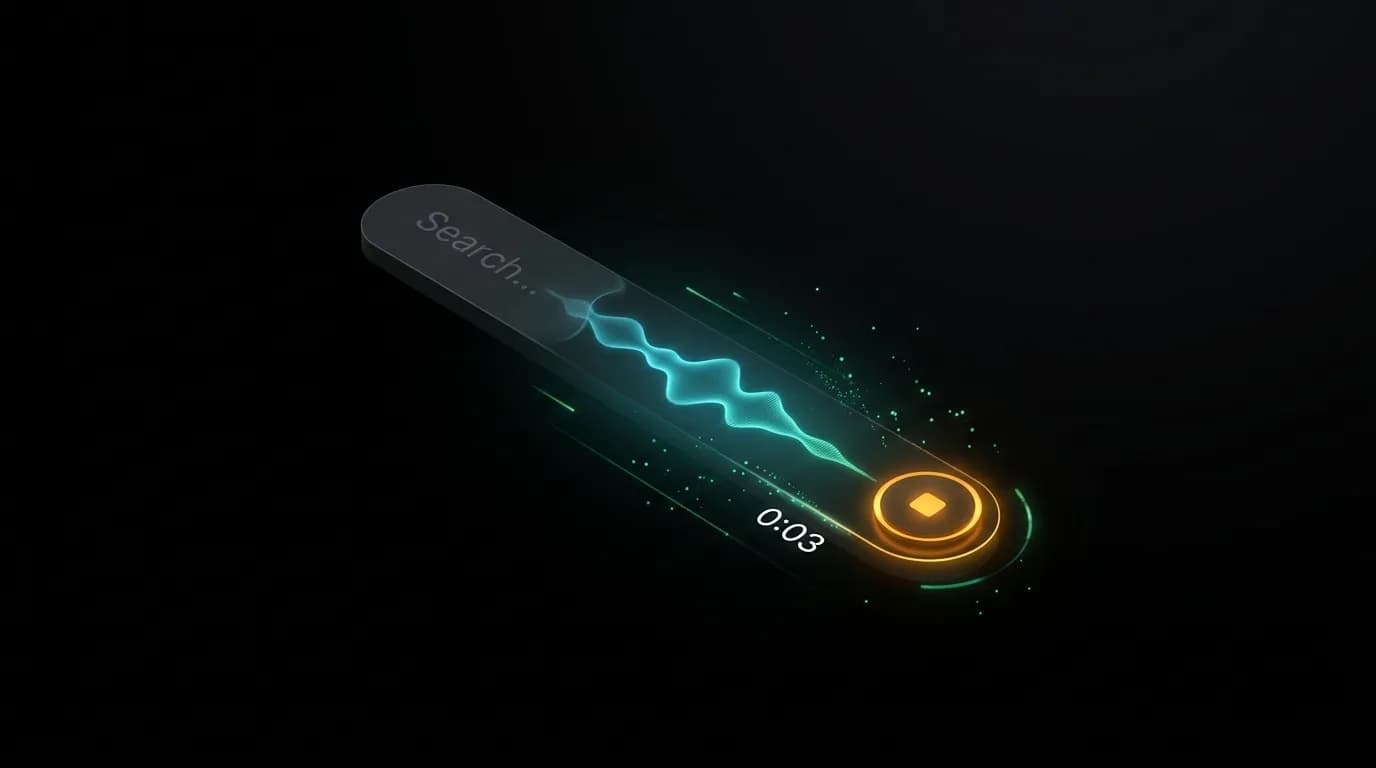
When the user taps the microphone button, the input bar transforms. The text field is replaced by a waveform visualization that responds in real time to the audio input. A timer shows the recording duration. A stop button and a send button provide clear actions.
The waveform is not decorative. It provides real-time feedback that the microphone is actually listening. A static screen after tapping the microphone button creates doubt — "Is it hearing me?" The moving waveform answers that question continuously.
The recording state uses the accent green for the waveform and the microphone icon, creating a clear visual distinction from the default text input state. The color change, combined with the waveform animation, makes it impossible to miss that the app is in voice recording mode.
The transformation is animated — the text field slides out, the waveform slides in — over approximately 200 milliseconds. This transition communicates a mode change without being jarring. The user sees the interface reconfigure itself for voice, which sets the expectation that speaking is the next step.
Transcription display
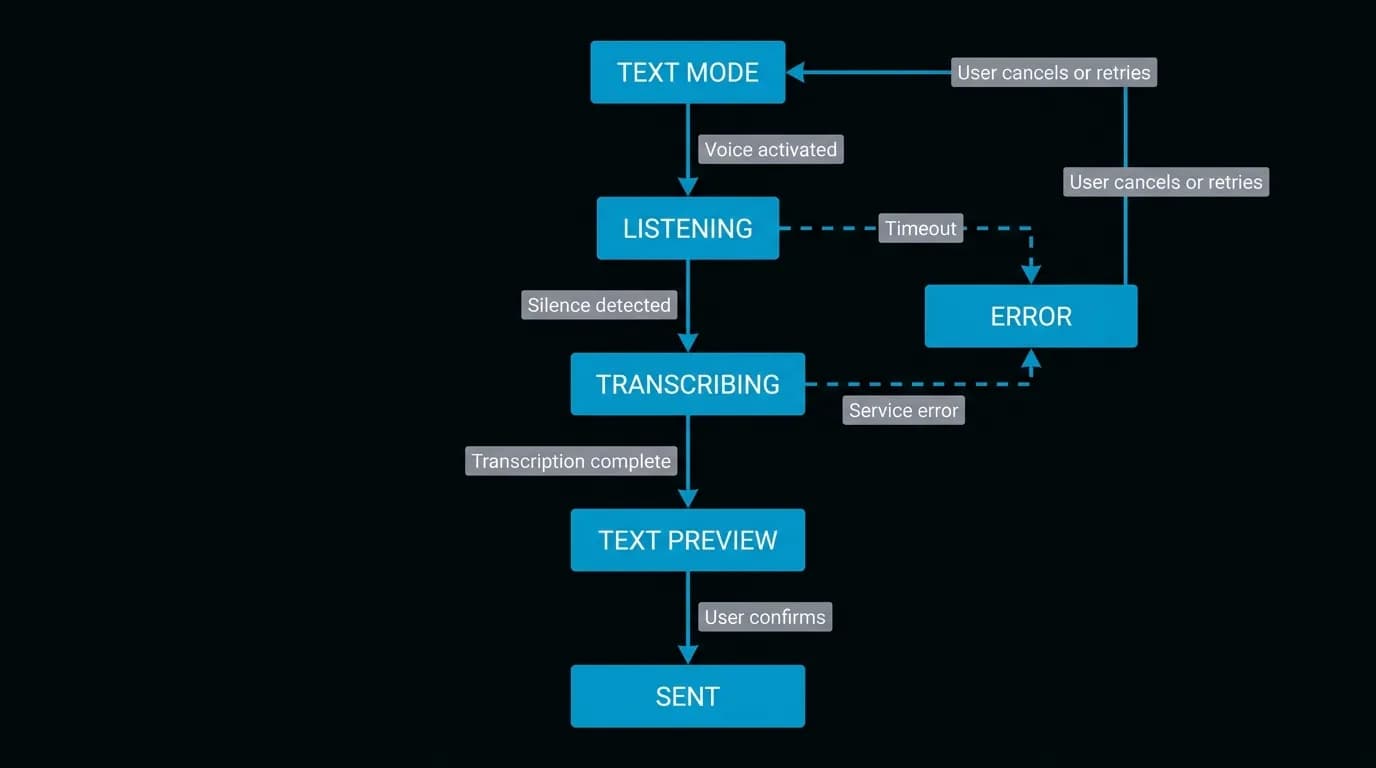
After the user stops recording, the audio is transcribed to text. The transcribed text appears in the chat as a user message, exactly as if they had typed it. This serves two purposes.
First, it lets the user verify the transcription. "Find me a flight to Tokyo" should say exactly that. If the transcription shows "Find me a fight to Taco," the user can tap the message to edit or simply send a correction.
Second, it creates a consistent conversation record. Whether the user typed or spoke their message, the chat history shows text. This means scrolling back through a conversation always produces readable content, and the AI's responses are anchored to text that both parties can reference.
The transcription preview appears quickly — usually within one to two seconds after recording stops. During transcription, a brief "Transcribing..." indicator shows that the system is processing the audio. This is analogous to the AI's thinking indicator: it confirms that work is happening.
Error handling
Voice input introduces unique error modes that text input does not have. The microphone might not pick up the audio clearly. The transcription might mishear words. The user's intent might be ambiguous.
For transcription errors, the most common pattern is location ambiguity. "Paris" — France or Texas? "Portland" — Oregon or Maine? When the AI detects a potential ambiguity in the transcribed text, it asks a clarifying question rather than guessing. "Did you mean Paris, France or Paris, Texas?" This is the same pattern the AI uses for any ambiguous text input, but it is more common with voice because speech lacks the precision of typed text.
For audio quality issues — background noise in an airport, a whispered query in bed — the transcription system may produce garbled output. Rather than sending obviously incorrect text, the system shows the uncertain transcription and asks the user to confirm or re-record. "I heard 'Find me a flight to talk me out.' Did you mean something different?"
The error handling is conversational. There are no technical error codes, no "Speech recognition failed" messages. The AI acknowledges uncertainty in the same natural language it uses for everything else.
Voice as first-class input
Voice is not an alternative to text. It is a peer. The same AI processes both. The same conversation records both. The same results follow both. The user should never feel that voice input produces a different or lesser experience than text input.
This parity extends to every feature. Suggested prompt chips can be spoken instead of tapped. Booking confirmations work the same whether the initial request was typed or spoken. Follow-up questions and refinements work identically in both modes.
The only difference is the input mechanism. Everything downstream is identical. That is what it means to design voice as first-class.
Nowah is an AI travel agent that searches and books real flights and hotels through conversation — no filters, no thirty open tabs. Plan your next trip.